I Tried Firebase Studio: My Honest Review After Building a Real App
AI app builders are everywhere right now, and Firebase Studio is one of the most talked-about ones.
And if you’ve been curious about using Firebase Studio to build a full-stack app with AI, honestly… I get it.
- Prompts turn into real apps
- Built on top of Firebase + Gemini
- Promises fast, production-ready prototypes
Sounds impressive on paper… but does it actually hold up?

I spent time building a real project inside Firebase Studio, and this is my honest review.
You’ll get:
- My personal experience using Firebase Studio
- A clear breakdown of what works (and what doesn’t)
- Real-world limitations most people don’t talk about
- Whether it’s worth using in 2026
Let’s get into it.
TL;DR: My Experience Using Firebase Studio?
Need a quick rundown? No problem: here’s a summary of my experience with Firebase Studio:
Did Firebase Studio Actually Work?
Yes, but with limits.
I used it to build a small full-stack app with authentication, a dashboard, Firestore data, and AI-generated features.
The first prototype came together fast.
The basic UI and app structure were ready in under an hour, which was genuinely impressive.
But the deeper I went, the more manual fixing I had to do.
Firebase Studio was great at creating a working starting point, but it still needed developer judgment to clean up code, fix errors, connect Firebase services properly, and prepare the app for real users.
Note: Firebase Studio is not the same as a polished no-code app builder. You still need some technical understanding, especially if your app uses Authentication, Firestore, Cloud Functions, or deployment.
Is It Worth Using?
Yes: Firebase Studio is useful if you want to prototype Firebase-backed apps quickly.
For example:
If you already have an idea for a SaaS dashboard, internal tool, AI app, or MVP, Firebase Studio can help you create the first version much faster than starting from a blank editor.
That said, I wouldn’t use it as my main production development platform.
Firebase Studio is helpful for experiments, learning, and quick builds.
But for serious long-term projects, I’d still move the code into a more stable setup like VS Code, Cursor, GitHub, and a proper deployment workflow.
AI app builders are everywhere right now, and Firebase Studio is one of the most talked-about ones.
And if you’ve been curious about using Firebase Studio to build a full-stack app with AI, honestly… I get it.
- Prompts turn into real apps
- Built on top of Firebase + Gemini
- Promises fast, production-ready prototypes
Sounds impressive on paper… but does it actually hold up?
I spent time building a real project inside Firebase Studio, and this is my honest review.
You’ll get:
- My personal experience using Firebase Studio
- A clear breakdown of what works (and what doesn’t)
- Real-world limitations most people don’t talk about
- Whether it’s worth using in 2026
Let’s get into it.
What Is Firebase Studio and Who Is It For?
Firebase Studio is Google’s AI-powered app development workspace.
It helps you build, edit, preview, and deploy full-stack apps from your browser.
It does this by combining a code editor, Gemini AI, Firebase services, and app previews in one place.
Firebase Studio is built for developers who want to turn ideas into working apps faster.
Here’s how it works:
- You describe the app you want to build.
- Gemini creates a project plan and starter code.
- You edit the app inside a browser-based coding workspace.
- You connect Firebase tools like Authentication, Firestore, and Hosting.
- You preview the app and fix issues as you build.
And Firebase Studio does a lot of this with AI assistance.
The best thing about Firebase Studio is how quickly it gets you from idea to prototype.
It is ideal for developers, indie hackers, students, and small teams testing app ideas.
But it is not perfect for complete beginners who expect a fully no-code experience.
You still need some understanding of code, Firebase setup, and deployment.
Now that you know what Firebase Studio does, let me share my personal experience using it for a real project.
What Are the Key Features of Firebase Studio?
Firebase Studio offers four main features that help you build and test apps faster.
Here is how they work:
1. AI App Generation
2. Browser-Based Coding Workspace
3. Firebase Integration
4. App Preview and Deployment
1. AI App Generation
This is the main reason why Firebase Studio feels exciting at first.
You can describe the app you want to build, and Gemini helps turn that idea into a working project.
Here are some of the things Firebase Studio can do:
- Create a basic app structure from your prompt.
- Generate frontend screens and components.
- Suggest backend logic for your app.
- Explain code when you get stuck.
- Help fix errors inside the project.
In short,
Firebase Studio helps you go from “I have an idea” to “I have something running” much faster than starting from scratch.
I used it to create a small full-stack dashboard with login, Firestore data, and AI-generated content.
The Result:
I had the first version running much faster than I expected.
But it was not perfect.
Some parts worked well right away, while others needed manual fixes. Authentication, database rules, and backend logic still required developer attention.
If you already understand Firebase, you can move quickly inside Firebase Studio.
More in the next section.
2. Browser-Based Coding Workspace
This is the part that felt most useful to me.
Firebase Studio is not just a prompt box that gives you random code.
It gives you a real coding workspace inside your browser.
You can work with:
- Project files
- Code editor
- Terminal
- App preview
- Gemini chat
- Firebase setup tools
I liked this because I was not locked into a fully no-code workflow.
I could ask Gemini to generate something, then open the code and fix it myself when needed.
That matters a lot.
Most AI app builders feel great until something breaks. Then you are stuck.
With Firebase Studio, you can still get your hands into the code.
If you are a developer, this makes the tool much more useful.
If you are a complete beginner, it may feel a little overwhelming at first.
3. Firebase Integration
Firebase Studio works best when your app needs Firebase services.
You can use it with:
- Firebase Authentication
- Firestore
- Firebase Hosting
- Cloud Functions
- App Hosting
- Gemini-powered features
This is where Firebase Studio should have been the strongest.
And to be fair, it does make Firebase-based development feel faster.
But I also noticed one big issue.
The integration is not always as automatic as you might expect.
For example, Firebase Studio can generate code that expects Authentication or Firestore to be ready, but you may still need to configure those services yourself.
I had to check setup steps, fix rules, and make sure the app was actually connected to the right Firebase project.
So yes, the Firebase integration is useful.
But no, it does not remove all the setup work.
4. App Preview and Deployment
Firebase Studio also gives you a way to preview your app while you build.
This makes testing much easier because you can see changes without constantly switching tools.
You can use it to:
- Preview the web app.
- Test UI changes.
- Spot layout issues.
- Check if generated features actually work.
- Prepare the app for deployment.
The preview feature saved me time.
Instead of guessing whether the app worked, I could see it running and then ask Gemini to adjust specific parts.
The deployment side was a little more mixed.
Simple projects felt manageable.
But once the app needed proper backend setup, environment variables, Firebase rules, and production-ready configuration, I had to slow down and handle things carefully.
The best part?
Firebase Studio gives you a fast path from idea to working prototype.
It is a solid option if you want to test an app idea, build a quick MVP, or learn Firebase with AI support.
But if you are building something serious, treat Firebase Studio as a starting point, not the final development setup.
What Are the Pricing Plans of Firebase Studio?
Firebase Studio is currently free to use during its preview phase.
That’s one of the biggest reasons so many developers are trying it right now.
Firebase Studio Pricing Page
Let me break it down.
1. Firebase Studio (Preview) – $0
- Access to the full Firebase Studio workspace
- AI-powered app generation with Gemini
- Browser-based code editor and preview
- Basic Firebase integration tools
That said, “free” doesn’t mean everything is free.
Firebase Studio runs on top of Firebase and Google Cloud.
So once you start using real backend services, you may still incur costs.
2. Firebase Services (Pay-As-You-Go)
- Firestore database usage
- Firebase Authentication (beyond free limits)
- Cloud Functions execution
- Hosting and App Hosting
- Storage and bandwidth
Firebase uses a pay-as-you-go model.
You only pay for what your app actually uses.
3. Gemini / AI Usage (Usage-Based)
- AI-assisted code generation
- Prompts and responses inside Firebase Studio
- Advanced AI features (if usage grows)
Some AI usage is included during preview.
But heavy usage may eventually be tied to Google Cloud billing as the product evolves.
The best part?
You can start building with Firebase Studio without paying anything upfront.
It is a great way to test ideas, build prototypes, and explore AI-powered development.
Just keep in mind:
If your app grows or uses real Firebase services, costs can scale with usage.
What Are Users Saying About Firebase Studio?
Firebase Studio has mixed user reviews across Reddit, developer blogs, and review platforms.
Users generally like how fast it is for creating prototypes, testing ideas, and working inside a browser-based coding environment.
But many developers also say it becomes harder to trust once the app needs authentication, backend logic, or production-level setup.
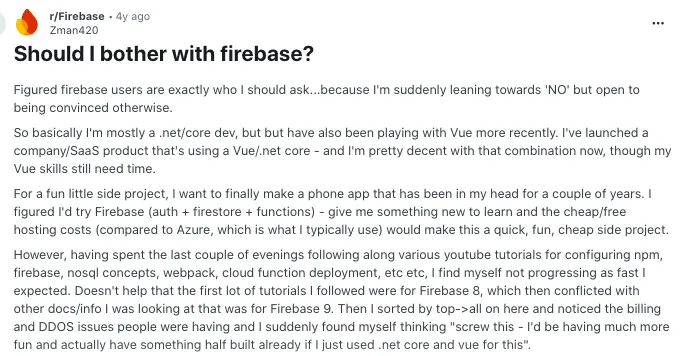
Here is how one Reddit user described their experience with Firebase:
Source: Reddit
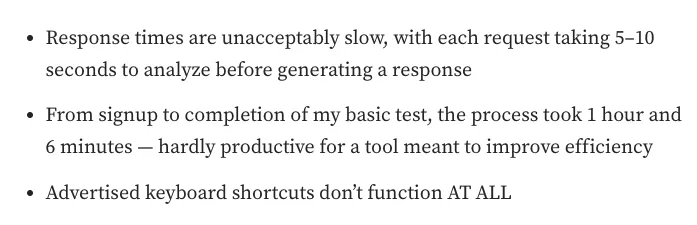
And here is what another developer said after testing Firebase Studio for a real app:
Source: Medium
So as per these reviews, Firebase Studio works well for setup and templates, but full-stack development with authentication can become painful.
Pros and Cons of Using Firebase Studio
Pros
- Helps you build app prototypes much faster.
- Comes with Gemini AI support inside the workspace.
- Lets you edit real code instead of only using prompts.
- Works well with Firebase tools like Firestore and Authentication.
- Browser-based setup makes it easy to start quickly.
- Useful for testing MVPs, dashboards, and AI app ideas.
- Currently available at no cost during preview.
Cons
- Not fully beginner-friendly if you don’t understand code.
- Firebase setup still needs manual work in many cases.
- AI-generated code can break or miss important details.
- Not ideal for serious long-term production apps.

Final Verdict: Is Firebase Studio Truly Worth It?
Yes, Firebase Studio is worth trying if you want to build prototypes faster with AI.
It gives you a strong starting point without the usual setup friction.
But I wouldn’t rely on it as your full development environment.
You still need to fix code, handle Firebase setup, and make things production-ready.
For developers, indie hackers, and students, it can save a lot of time early on.
For beginners, it can feel confusing once things go beyond simple apps.
My honest take: use it for MVPs, experiments, and learning Firebase faster.
For serious products, move your project to a stable workflow once it’s ready.
Also Read Other Tools Reviews
Firebase Studio Review: FAQs
Is Firebase Studio Free?
Yes, Firebase Studio is currently free to use during its preview phase.
But your app may still create Firebase or Google Cloud costs if you use paid services like Firestore, Hosting, Cloud Functions, or storage.
Is Firebase Studio Shutting Down?
Yes, Firebase Studio is scheduled to shut down on March 22, 2027.
Firebase itself is not shutting down. Only Firebase Studio, the AI development workspace, is being sunset.
Can Firebase Studio Build Production Apps?
Technically, yes, but I would be careful.
It can help you create a working app, but you still need to review the code, configure Firebase properly, secure your database rules, and test everything before launch.
Is Firebase Studio Good for Beginners?
It depends on the beginner.
If you understand basic coding concepts, Firebase Studio can help you learn faster. But if you expect a fully no-code app builder, it may feel confusing.
What Can You Build With Firebase Studio?
You can build web apps, dashboards, internal tools, AI apps, MVPs, and Firebase-backed prototypes.
It works best when your project uses Firebase services like Authentication, Firestore, Hosting, or Gemini-powered features.
Is Firebase Studio Better Than Lovable or Bolt?
Firebase Studio is better if you want more code control and Firebase integration.
Lovable and Bolt may feel easier for fast no-code-style app generation, especially if you care more about speed than backend control.
What Are the Best Firebase Studio Alternatives?
Good Firebase Studio alternatives include Cursor, Replit, Lovable, Bolt, Google AI Studio, and Google Antigravity.
For serious development, I would use Firebase with VS Code, GitHub, and a proper deployment workflow.
Should Developers Use Firebase Studio?
Yes, developers can use Firebase Studio for quick prototypes, experiments, and learning Firebase faster.
But for long-term projects, I would treat it as a starting point, not the place where the final product lives.
What’s New?