5 Best AI Coding Tools I Actually Tested for Real Development Work (2026)
AI coding tools can make or break your development workflow.
According to recent industry trends, a growing number of developers now rely on AI tools to write code faster, debug issues, and handle repetitive tasks that would normally eat up hours.
That means even a skilled developer can lose time and momentum if they are using the wrong tool for the job.
The tricky part? Most AI coding tools look impressive on the surface.
But flashy demos do not tell you how well a tool works in real projects. It only takes a few bad suggestions, weak context handling, or messy code edits to slow everything down. Without proper testing, you would never know the difference.

I have spent years working with AI-powered developer tools, and I have tested a wide range of coding assistants across real development workflows.
In this guide, I have reviewed the 5 best AI coding tools across code completion, debugging, refactoring, collaboration, and rapid prototyping.
I compared their features, looked at their strengths and trade-offs, and matched each one to a specific use case so you can pick the right tool without wasting time on the wrong one.
Let’s get into it.
TL;DR: My Top AI Coding Tool Picks for 2026
Short on time? Here’s who I’d recommend based on what you need:
- Need the best all-around AI coding assistant for everyday development? → Cursor. It’s built around agentic coding workflows, can hand off tasks to AI agents, and is designed to help you move faster inside a full editor instead of relying on a simple plugin.
- Need an AI tool that fits naturally into a GitHub-based workflow? → GitHub Copilot. It works well for teams already using GitHub and supports agent mode for multi-step coding tasks, code edits, and terminal-assisted workflows.
- Need an AI-first coding partner for fast multi-file edits and developer flow? → Windsurf. Its Cascade assistant supports code and chat modes, tool calling, checkpoints, and real-time awareness, which makes it a strong pick for hands-on pair programming.
- Need to build and ship from the browser without a heavy local setup? → Replit. Replit Agent can turn natural language prompts into working apps and websites, then lets you keep building and publishing inside the same browser-based platform.
- Need to prototype full-stack web apps as quickly as possible? → Bolt.new. It lets you prompt, run, edit, and deploy full-stack applications directly in the browser, which makes it especially useful for rapid frontend and product experiments.
If you want the details, keep reading. I’ve broken down every tool below.
Quick Comparison Table of the Best AI Coding Tools
| Tool | Best for | What it does best | Main drawback | Pricing snapshot |
|---|---|---|---|---|
| Cursor | Developers who want the strongest all around AI coding workflow | Feels like an AI first editor with strong multi step coding, edits, and agent handoffs | Can get expensive with heavy usage, especially advanced agent features | Paid plans available, including Ultra at $200 per month |
| GitHub Copilot | Developers and teams already deep in GitHub | Strong IDE integration with completions, chat, and repo level assistance | Best experience depends on a GitHub centered workflow | Free plan available; paid plans include unlimited completions and premium usage |
| Windsurf | Developers who want an AI native coding partner | Real time assistance with fast back and forth coding workflows | Pricing details are less straightforward; enterprise evaluation often needed | Free forever for individuals; Pro, Max, Teams, and Enterprise plans available |
| Replit | Founders, learners, and builders who want browser based coding | Prompt to app flow with built in build and deploy features | AI costs scale with usage due to agent based billing | Free tier available; AI usage billed based on credits |
| Bolt.new | Fast full stack prototypes and frontend experiments | Turns prompts into working web apps with built in hosting | Token limits can restrict heavy usage and scaling | Free plan available; Pro starts at $25 per month |
How We Evaluated These AI Coding Tools
To give you the best AI coding tools, here’s how I evaluated them.
I explored each tool, used it in real coding workflows, and compared how it handled practical development tasks. I reviewed a wide range of AI coding assistants and picked only the ones that genuinely help developers write, edit, debug, and ship code faster.
Why should you trust this list? Because I’ve worked with these kinds of tools in real development environments and looked at them from a developer’s point of view.
Here are the core factors I used to choose these tools:
- Code quality and reliability: The tool must generate useful, accurate code and stay reliable during real development work.
- Features: It should include the features that actually matter, like code completion, debugging help, refactoring support, chat-based assistance, and multi-file context awareness.
- Pricing and value: It should offer fair pricing and deliver enough value to justify the cost.
- User feedback: I looked at real user sentiment, community discussions, and hands-on impressions to understand how these tools perform outside polished demos.
- Tool categories: This list includes AI coding tools across different use cases, including full AI code editors, coding assistants, browser-based builders, and rapid prototyping tools.
Now, let’s look at each tool in detail.
Top 5 AI Coding Tools [Discussed in Detail]
Now, let’s look at each AI coding tool in detail by breaking down its purpose, key features, and pros and cons.
1. Cursor
Cursor is one of the few AI coding tools I’d confidently recommend for real day-to-day development.
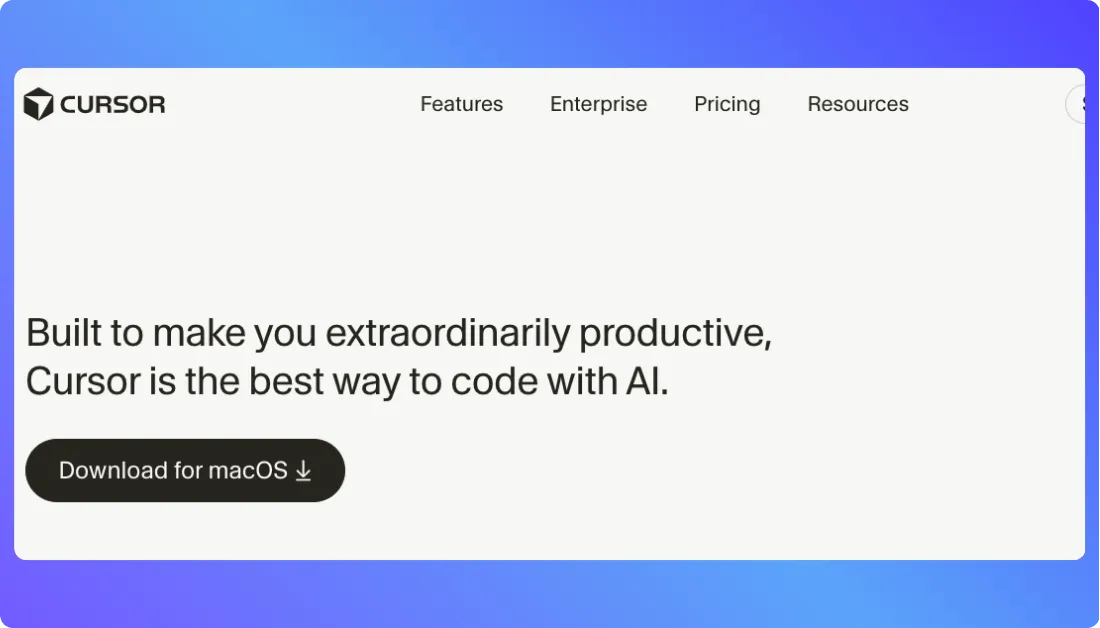
It does more than autocomplete. It helps you write code, refactor files, understand unfamiliar codebases, and move through development tasks with less back and forth. Cursor positions itself as an AI-first coding environment, with agents, code review, cloud agents, a CLI, and context-aware coding features built into the product.
You’re not paying for a basic suggestion box. You’re using a tool that is built to handle deeper coding workflows, especially when a task touches multiple files or needs planning before editing. Cursor also supports codebase indexing and says it can answer questions using the context of your codebase, which is a big reason it feels more useful than a simple autocomplete plugin.
What do I like most? It feels like a real coding partner when I’m working through larger tasks. Cursor’s official product pages highlight multi-line edits, cross-file jumps, refactors across the codebase, built-in agent modes, cloud agents, and a growing plugin marketplace. That makes it especially strong for developers who want help beyond one-line code suggestions.
How Cursor Helps You Code Faster
Cursor focuses on one big thing: helping developers ship code with less friction.
- Context-aware coding: Cursor can semantically index your codebase, which helps it answer questions and generate code with awareness of existing files and implementations.
- Agent-based workflows: Cursor offers agent features and cloud agents that can work through tasks, run in parallel, and help with larger build-and-edit flows.
- Better-than-basic autocomplete: Its Tab experience is designed for multi-line changes, cross-file jumps, and refactors that affect more than one file.
- Flexible customization: Cursor supports MCPs, skills, hooks, rules, and plugins, which gives advanced users more control over how the AI behaves.
- Privacy controls: Cursor says Privacy Mode can be enabled so code data is not stored by model providers or used for training.
All of that makes it a strong fit for developers who want one tool that can handle coding, editing, navigation, and AI-assisted planning in the same place.
On top of that, Cursor has a clean interface and a familiar editor-style workflow, so it does not take long to get comfortable with it. That matters when you want AI help without rebuilding your whole setup.
If someone asks me why I recommend Cursor, the answer is simple. It helps you move faster on real coding work, not just generate snippets that look good in a demo.
Let me now break down its key features.
Key Features of Cursor
- AI-first code editor: Built specifically around coding with AI, not added on as a lightweight extension.
- Codebase indexing: Understands your repository context and references existing code more effectively.
- Agent and cloud agent support: Useful for larger tasks that need planning, execution, and review.
- Advanced code completion: Supports multi-line edits, cross-file jumps, and larger refactors.
- Rules, skills, hooks, and MCP support: Gives teams and advanced users deeper control over workflows.
- Marketplace plugins: Extends the editor with plugins, subagents, commands, and MCP servers.
- Privacy mode: Offers an option to keep code data from being stored by model providers or used for training.
Pros
- Great for real coding workflows, not just code suggestions
- Strong context awareness across a codebase
- Useful for refactoring, navigation, and multi-file changes
- Supports agent-based workflows for bigger tasks
- Flexible enough for both individual developers and teams
Cons
- Paid plans can get expensive if you use it heavily
- More powerful features can take time to learn if you are new to AI-first editors
Pricing
Cursor offers a Hobby free plan with limited Agent requests and limited Tab completions. Its paid individual plans currently include Pro at $20/month and Pro+ at $60/month, with higher usage and access to frontier models. The pricing page also notes that usage-based billing can apply after included model usage is consumed.
Also Read:
2. GitHub Copilot
If you’ve spent any time around modern developer tools, you’ve probably come across GitHub Copilot already.

Overall, I’d say GitHub Copilot is one of the safest picks for developers who want AI help inside a familiar workflow instead of switching to a completely new editor. GitHub positions it as an AI pair programmer that works across the IDE, CLI, and GitHub itself, which makes it especially useful for developers who already live inside the GitHub ecosystem.
Unlike some AI-first editors that try to replace your whole setup, Copilot fits into the tools many developers already use. That matters. You do not need to relearn your workflow just to get value from it. You install it, start coding, and it begins helping with inline suggestions, chat, and task support inside your existing environment. GitHub’s current plan docs also show that all Copilot plans include both code suggestions and chat assistance.
How GitHub Copilot Helps You Code Faster
GitHub Copilot is helpful when you want AI support that feels practical and low-friction.
It helps with things like:
- Writing repetitive code faster with inline suggestions
- Explaining code you did not write
- Generating boilerplate and common patterns
- Speeding up debugging and small refactors inside your IDE
From my point of view, Copilot works best when you want steady day-to-day help instead of a tool that tries to take over the whole development process. GitHub’s official pages show that Copilot runs across the coding environment, including supported IDE experiences, the CLI, and GitHub Mobile, while enterprise plans extend that experience further into GitHub.com.
One thing I like here is the predictability. Copilot usually feels straightforward. It gives you suggestions, helps with chat-based questions, and stays close to the workflow you already know. That makes it easier to recommend to individual developers, teams, and companies that want quick adoption without much change management.
Here is a quick overview of the key features of GitHub Copilot.
Key Features of GitHub Copilot
- Inline code suggestions: Generates code as you type inside supported editors and IDEs. GitHub’s individual plan details list real-time code suggestions across plans, with higher tiers increasing limits or making suggestions unlimited.
- Chat assistance: Helps explain code, answer programming questions, and assist with debugging inside the coding environment. GitHub says chat is included across Copilot offerings.
- Works across the GitHub ecosystem: Copilot Business focuses on the coding environment, including IDEs, CLI, and GitHub Mobile, while Enterprise adds more customization and GitHub.com integration.
- Flexible plans for individuals and teams: GitHub currently offers Free, Pro, Pro+, Business, and Enterprise options.
- Controlled file changes in CLI workflows: GitHub notes that file modification and command execution require explicit approval, which gives developers more visibility and control.
Pros
- Easy to adopt if you already use GitHub and a supported IDE.
- Good for everyday coding, boilerplate, and code explanations.
- Offers both free and paid plans for individual developers.
- Works well for teams that want centralized licensing and policy controls through Business or Enterprise plans.
Cons
- It feels strongest inside a GitHub-centered workflow, so developers outside that ecosystem may not get the same advantage. This is an inference based on GitHub’s product positioning around IDEs, CLI, GitHub Mobile, and GitHub.com integration.
- Higher-end usage and premium model access can push users toward more expensive plans like Pro+ or enterprise tiers.
Pricing
- Free plan
- Copilot Pro: $10/month
- Copilot Pro+: $39/month
- Copilot Business: $19/user/month
- Copilot Enterprise: $39/user/month
Now, let’s move to the next tool.
3. Windsurf
Windsurf is one of the more interesting AI coding tools in this space because it is not trying to feel like a basic assistant bolted onto an old workflow.

Overall, I’d say Windsurf is built for developers who want an AI-first coding experience that feels more like active collaboration than simple autocomplete. On its official site, Windsurf describes itself as an AI coding experience designed to keep developers in flow, and its editor is positioned as an agent-powered IDE rather than a lightweight extension.
Unlike traditional coding assistants that mostly wait for you to type and then suggest the next line, Windsurf leans into agent-style help. Its product pages highlight Cascade, Tab, browser context, and terminal features, which tells you right away that this tool is aiming for deeper involvement in the development process.
How Windsurf Improves Your Coding Workflow
Windsurf is helpful when you want AI that stays involved across a task instead of only helping one prompt at a time.
It helps with things like:
- Working through coding tasks in a more interactive, back-and-forth way
- Generating and editing code with stronger context across the project
- Using an AI agent to handle larger build flows
- Staying inside one environment for chat, code, terminal actions, and project work
What I like here is the flow. Windsurf is clearly designed around that idea. Its official messaging repeatedly focuses on keeping developers “in flow,” and the editor page calls it an agentic IDE built for a coding experience where developers and AI work together more naturally.
That makes it a strong fit for developers who want more than code suggestions. It feels better suited to active pair-programming, multi-step edits, and broader AI-assisted development sessions where context matters.
Here is a quick overview of the key features of Windsurf.
Key Features of Windsurf
- Cascade AI agent: Windsurf’s site describes Cascade as an AI agent that can code, fix, and think ahead across tasks.
- Agent-powered editor: The Windsurf Editor is positioned as an agentic IDE available on Mac, Windows, and Linux.
- Tab autocomplete: Windsurf highlights Tab as its autocomplete system powered by project context.
- Browser and terminal support: Official feature pages list browser context and terminal command support as part of the workflow.
- Multiple plan types: Windsurf docs list Free, Pro, Max, Teams, and Enterprise plans.
- Team and enterprise controls: Windsurf’s enterprise page lists centralized billing, analytics, zero data retention, RBAC, SSO, and hybrid deployment options for higher-tier users.
Pros
- Feels more AI-native than traditional coding assistants.
- Strong fit for developers who want interactive, agent-style coding help.
- Free plan available for individuals.
- Teams and enterprise users get admin, analytics, and security-oriented controls.
Cons
- It can feel less familiar if you prefer a traditional editor-plus-plugin setup. This is an inference based on Windsurf’s AI-first, agentic product design.
- Pricing is not as simple at a glance as tools with only one or two public plan tiers, since Windsurf splits usage across Free, Pro, Max, Teams, and Enterprise options.
Pricing
- Free plan
- Pro plan
- Max plan
- Teams: $40/user/month
- Enterprise: Custom pricing
Also Read:
4. Replit
If you want to build apps without spending half your time setting up a local environment, Replit is one of the easiest tools to start with.
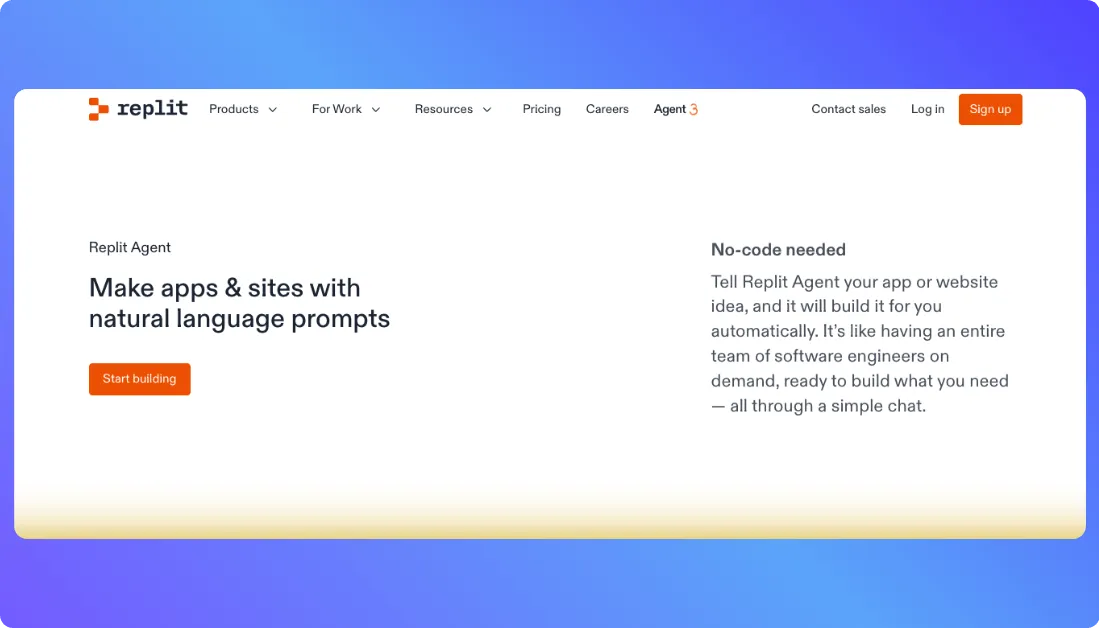
Overall, I’d say Replit is more than just an online IDE now. It has turned into a browser-based AI app builder that helps you go from idea to working product much faster than a traditional setup. Replit’s official docs describe it as an AI-powered platform for creating and publishing apps from a single browser tab, and its Agent is built to turn plain-language prompts into apps and websites.
Unlike traditional coding tools that expect you to install packages, configure runtimes, and manage your local machine first, Replit removes most of that friction. That is the real advantage here. You can describe what you want to build, let the Agent generate a starting point, and then keep refining the project in the same workspace. Replit also says you can deploy right away and share what you built without leaving the platform.
How Replit Improves Your Coding Workflow
When I look at Replit as an AI coding tool, its biggest strength is speed.
It helps with things like:
- Turning prompts into working apps and websites
- Coding directly in the browser without local setup
- Refining projects with AI assistance inside the same workspace
- Publishing and sharing apps without switching platforms
What I like most is how quickly it gets you moving. Replit’s docs say the platform configures your environment instantly, which is a big win for beginners, solo founders, and developers who want to test ideas fast. Its Agent product pages also highlight that the system can help build and refine apps, while more advanced options like Extended Thinking and high-power models can be used for more complex requests.
That makes Replit especially useful for rapid prototyping, MVP work, hackathon-style development, and learning projects where speed matters more than perfect control from the very beginning.
Here is a quick overview of the key features of Replit.
Key Features of Replit
- Browser-based AI development: Replit lets you create and publish apps from a single browser tab, which cuts out most setup work.
- Replit Agent: Its Agent can turn natural language into apps, websites, and more from plain-language prompts.
- Built-in publishing and deployment: Replit says you can build, deploy, and share from the same platform.
- Advanced Agent options: Replit’s Agent pages mention Extended Thinking and high-power models for more complex tasks.
- Usage-based AI billing: Replit documents that Agent pricing is effort-based, meaning the cost scales with the complexity of the request.
Pros
- Very easy to start with because there is no heavy local setup.
- Great for rapid prototyping, side projects, and browser-based development. This is an inference based on Replit’s browser-first workflow and Agent positioning.
- Lets you build and publish in one place, which saves time.
- Helpful for both beginners and experienced builders who want faster iteration. This is an inference based on Replit’s product messaging and low-setup approach.
Cons
- Agent pricing can become harder to predict because it is effort-based rather than a simple flat-rate usage model.
- It is better suited to fast building and iteration than deeply customized local workflows. This is an inference based on Replit’s browser-first platform design.
Pricing
- Starter plan
- Core plan
- Teams plan
- Enterprise plan
- Agent usage: effort-based pricing
Also Read: Top Replit Alternatives
Now, let’s move to the next tool.
5. Bolt.new
If your goal is to turn an idea into a working app as fast as possible, Bolt.new is one of the strongest tools in this category.
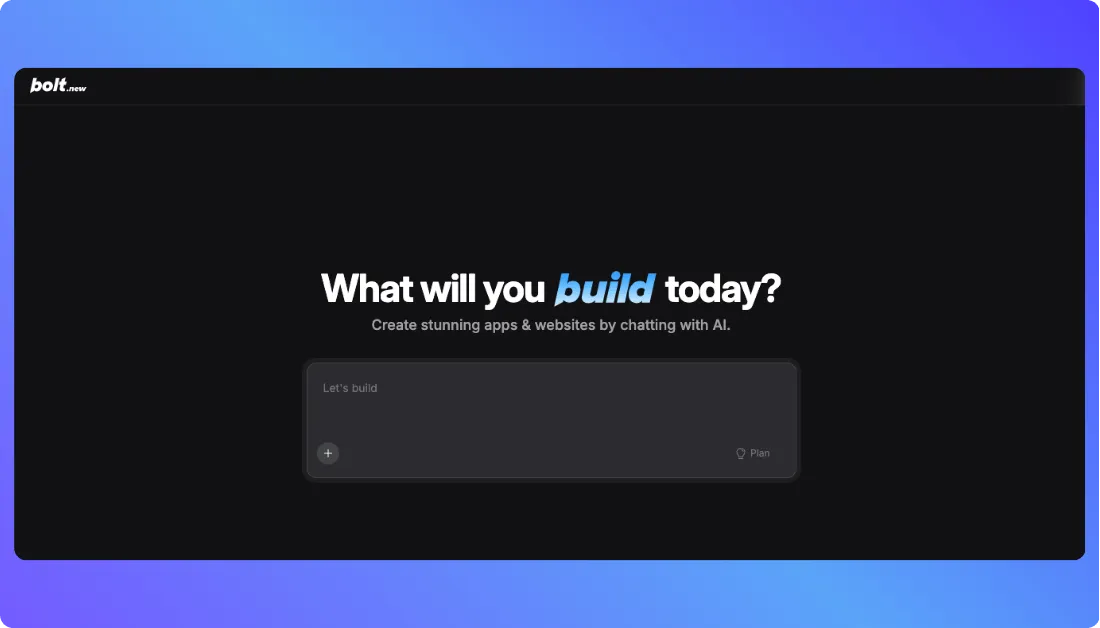
Overall, I’d say Bolt.new is built for fast full-stack prototyping inside the browser. Its official support docs describe it as an AI-powered builder for websites, web apps, and mobile apps, and the core pitch is simple: type your idea into chat and Bolt turns it into a working product in minutes.
Unlike a traditional AI coding assistant that mainly helps you inside an editor, Bolt is much more focused on building and iterating on complete products. Its official site says Bolt brings frontier coding agents into one visual interface and automatically tests, refactors, and iterates while you build. That gives it a very different feel from tools that stop at autocomplete.
How Bolt.new Improves Your Coding Workflow
Bolt.new is helpful when speed is the priority.
It helps with things like:
- Generating full-stack apps from prompts
- Running and previewing projects directly in the browser
- Iterating quickly on UI, features, and structure
- Publishing projects without a traditional local setup
What I like here is the simplicity. Bolt is built around fast iteration. You prompt it, get a working result, change what you want, and keep going. Bolt’s support docs also note that it can build websites, web apps, and mobile apps, while its product pages focus on reducing errors through testing, refactoring, and iteration.
This makes it a strong pick for founders, indie makers, designers who want working prototypes, and developers who want to validate ideas quickly before moving into a heavier engineering workflow.
Here is a quick overview of the key features of Bolt.new.
Key Features of Bolt.new
- Prompt-to-app generation: Bolt can turn a text prompt into a working website, web app, or mobile app.
- Browser-based workflow: The whole experience is designed to run in the browser, which keeps setup friction low.
- Integrated coding agents: Bolt says it brings frontier coding agents into one visual interface.
- Testing and refactoring support: Its homepage says Bolt automatically tests, refactors, and iterates while you build.
- GitHub integration: Bolt announced GitHub integration for importing existing repositories or connecting Bolt projects to private repos.
- Token-based usage model: Bolt’s support docs explain that usage costs are based on token processing, and larger projects generally use more tokens.
Pros
- Extremely fast for prototypes, MVPs, and early product experiments. This is an inference based on Bolt’s prompt-to-product workflow.
- No heavy setup, which makes it easy to start building right away.
- Handles more than just code suggestions because it is designed around full app creation.
- GitHub integration adds flexibility for developers who want to connect existing projects.
Cons
- Token usage can climb as projects get bigger, so costs may rise with more complex builds.
- It is better for rapid building than for teams that want a traditional IDE-centered workflow. This is an inference based on Bolt’s browser-first, prompt-driven design.
Pricing
- Free plan
- Pro plan
- Teams: $30/member/month
- Enterprise: Custom pricing
- Token usage applies based on project activity
Also Read: Best Bolt.new Alternatives
Which AI Coding Tool Is Best for Your Needs?
Choosing the right tool really comes down to how you actually code day to day.
Best for beginners
If you’re just getting started, you want something simple that helps you learn while building.
- Replit — no setup, runs in the browser, easy to understand
- GitHub Copilot — helps you learn patterns while you code
- Bolt.new — great for turning ideas into working apps quickly
Best for professional developers
If you write code daily, you need something that handles real workflows and complexity.
- Cursor — strong context awareness and multi-file editing
- GitHub Copilot — reliable for everyday coding tasks
- Windsurf — great for interactive, AI-first coding sessions

Best for teams
For team environments, stability, collaboration, and control matter more than flashy features.
- GitHub Copilot — easy to roll out across teams using GitHub
- Windsurf — supports collaborative, AI-assisted workflows
- Cursor — flexible enough for shared development environments
Best for rapid prototyping
When speed matters more than perfection, these tools help you ship ideas fast.
- Bolt.new — fastest way to build full-stack apps from prompts
- Replit — quick browser-based development and deployment
- Windsurf — good for fast iteration with AI assistance
Best for large codebases
If you’re working on complex projects, context and structure become critical.
- Cursor — best at understanding and navigating large codebases
- Windsurf — strong for multi-step workflows and context handling
- GitHub Copilot — helpful for smaller tasks within large projects
At the end of the day, the “best” tool is the one that fits your workflow — not the one with the longest feature list.
FAQs About AI Coding Tools
What is the difference between an AI coding tool and an AI code generator?
An AI coding tool is the broader category. It can help with code completion, debugging, refactoring, explanations, and project-level assistance. An AI code generator usually focuses on producing code from a prompt. In real use, most modern tools do both, but some are much better at full development workflows than others.
Can AI coding tools replace developers?
No, not in any serious way. They can speed up repetitive work, help you debug faster, generate boilerplate, and suggest solutions. But they still make mistakes, miss business logic, and sometimes produce messy code. You still need a developer to review the output, make decisions, and keep the codebase maintainable.
Which AI coding tool is best for beginners?
If you are just starting out, Replit is usually the easiest place to begin because it runs in the browser and removes most setup pain. GitHub Copilot is also a good pick if you already use VS Code and want help while learning common coding patterns. Bolt.new is useful too if your goal is to turn simple ideas into working apps quickly.
Which AI coding tool is best for professional developers?
For professional developers, I’d start with Cursor if you want the best all-around tool for daily coding, refactoring, and multi-file work. GitHub Copilot is a strong choice if you want something stable inside your current workflow. Windsurf makes sense if you want a more AI-first, interactive coding experience.
Which AI coding tool is best for teams?
It depends on how your team works:
For GitHub-centered teams: GitHub Copilot
For AI-first collaboration: Windsurf
For developers working across larger codebases: Cursor
For fast browser-based experiments: Replit
The right choice usually comes down to workflow, security needs, and how much context the tool can handle.
Are AI coding tools safe for private code?
They can be, but you need to check each tool’s privacy settings, data handling policy, and team controls before using it with sensitive code. Some tools offer privacy modes, admin controls, or enterprise options for stricter environments. If you are working with private repositories, client code, or regulated data, do not assume the default settings are safe enough.
What should I look for in an AI coding assistant?
Start with the basics: code quality, context awareness, IDE support, debugging help, and pricing. Then look at how well it fits your workflow. Some tools are better for autocomplete, some are better for multi-file edits, and some are better for building full apps from prompts. The best AI coding assistant is the one that saves time without creating extra cleanup work later.
Are free AI coding tools good enough?
For basic use, yes. Free plans are often enough to test the interface, try code suggestions, and see whether the tool matches your workflow. But if you code every day, work on larger projects, or need better context handling, you will usually hit the limits quickly. Free plans help you explore. Paid plans are where these tools become genuinely useful for serious development.
What’s New?